Export
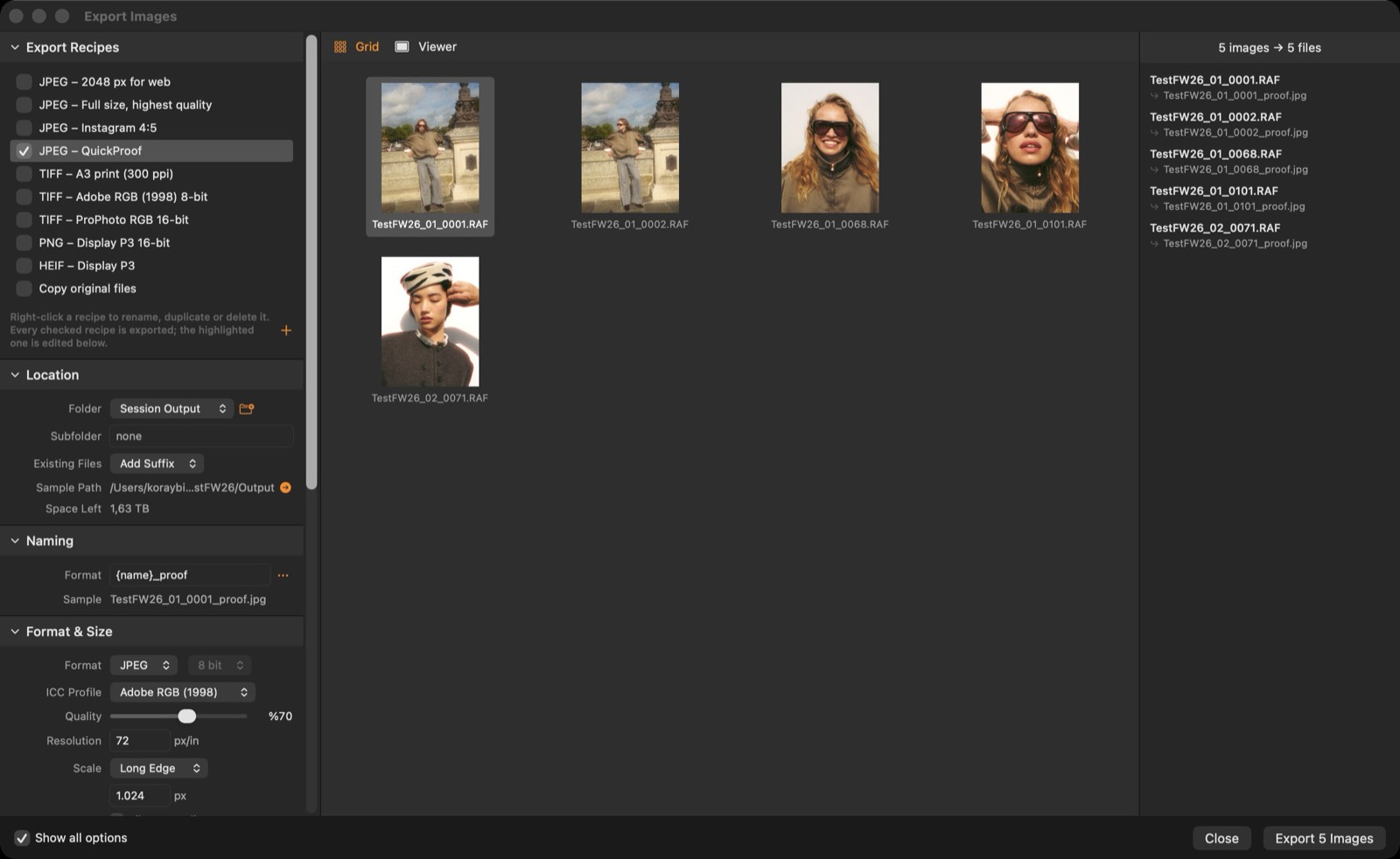
Recipes describe how files are written; every ticked recipe is exported for every selected image.
Recipes
Built-in recipes cover web JPEG, full-size JPEG, Instagram, proofs, print TIFF, ProPhoto TIFF, PNG and HEIF. Right-click a recipe to rename, duplicate or delete it; + adds a copy.
Location & naming
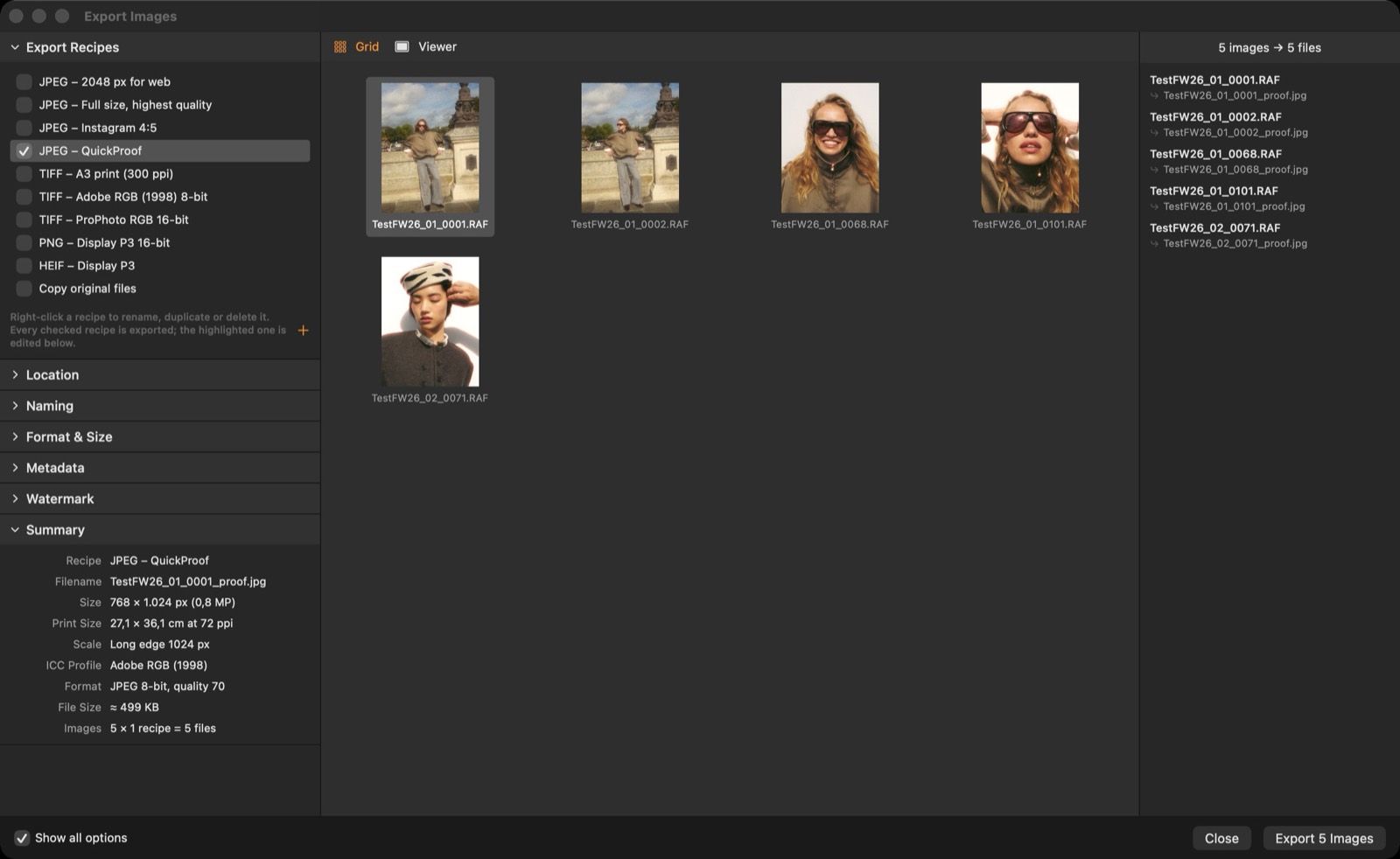
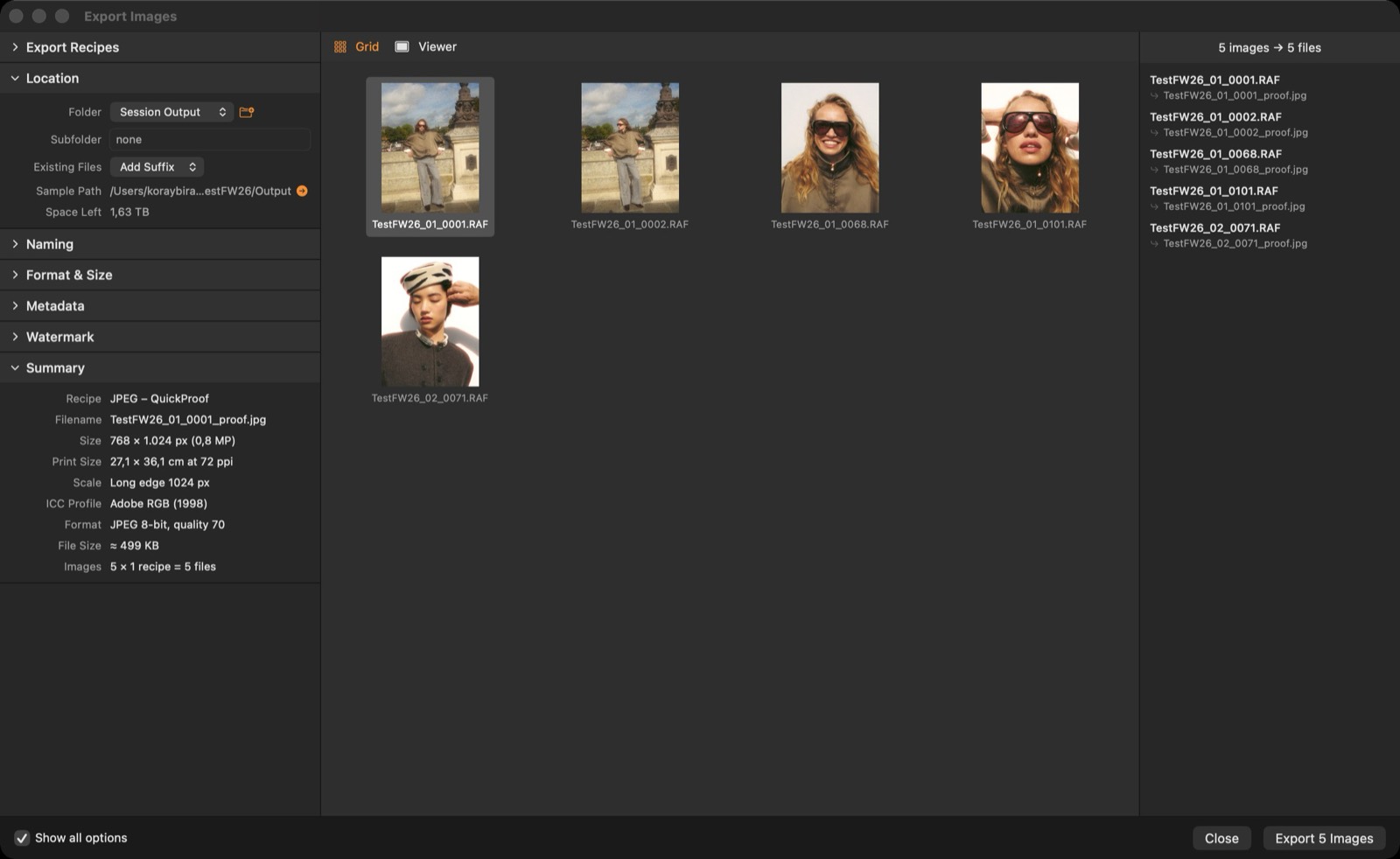
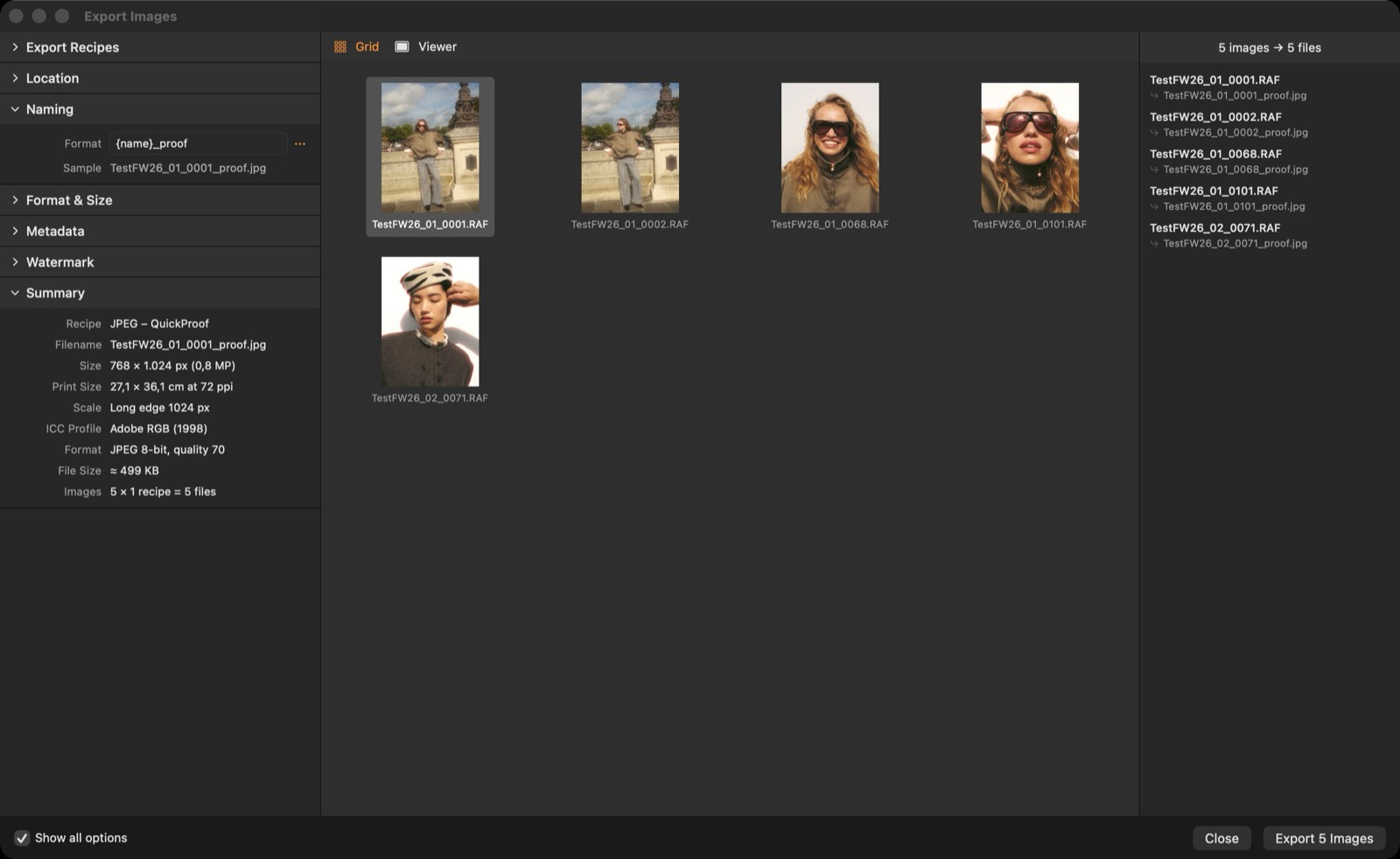
Export to the session's Output folder, next to the original or to any folder, with an optional subfolder. Names use tokens such as {name}, {counter}, {date}, {recipe} and {rating}.
Format & size
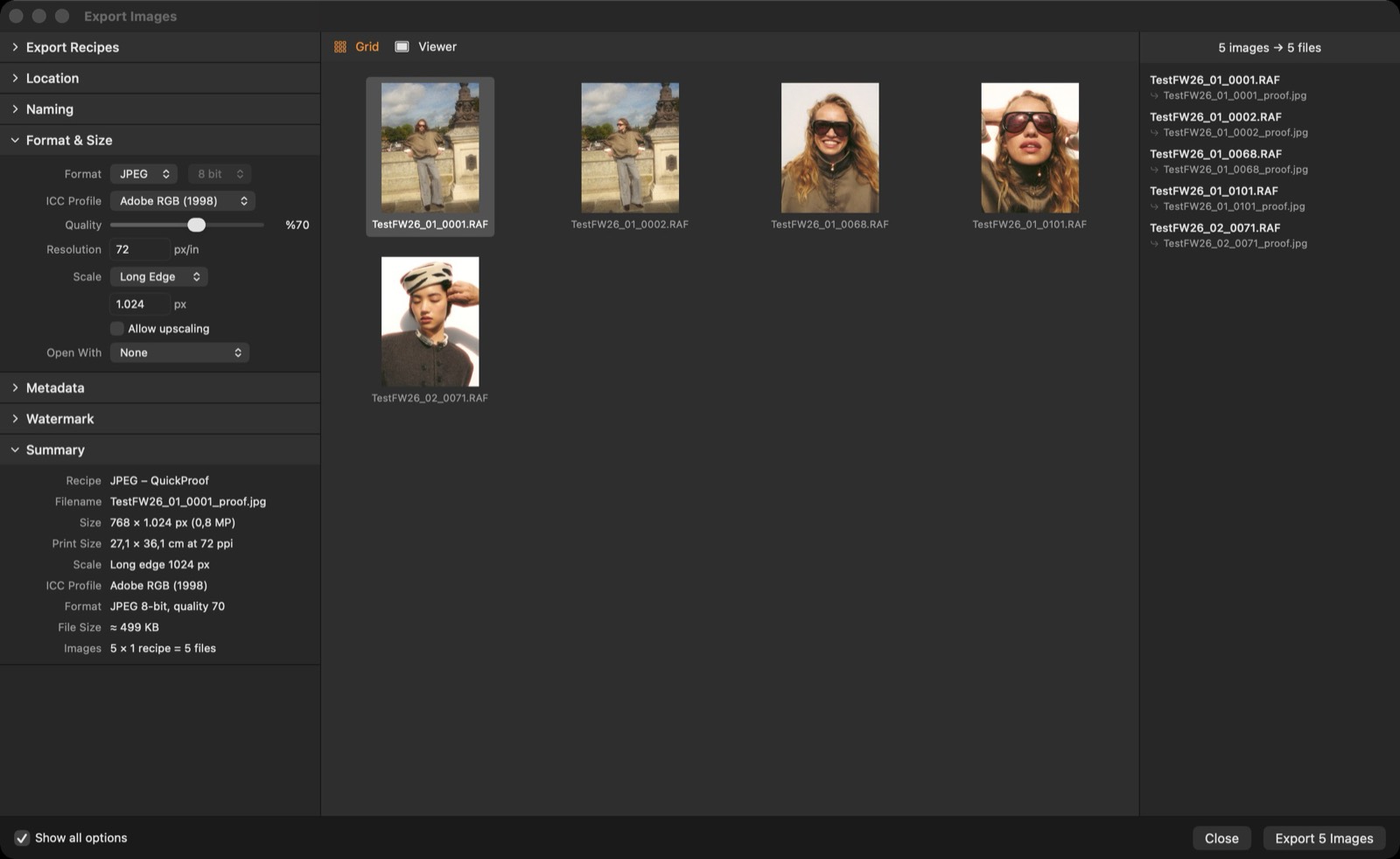
JPEG, TIFF (8/16-bit), PNG (8/16-bit), HEIF or PSD (8/16-bit, a flattened Photoshop document); ICC profile sRGB, Display P3, Adobe RGB (1998) or ProPhoto RGB; scale by percentage, long or short edge, width, height or a box; resolution in ppi.
Metadata
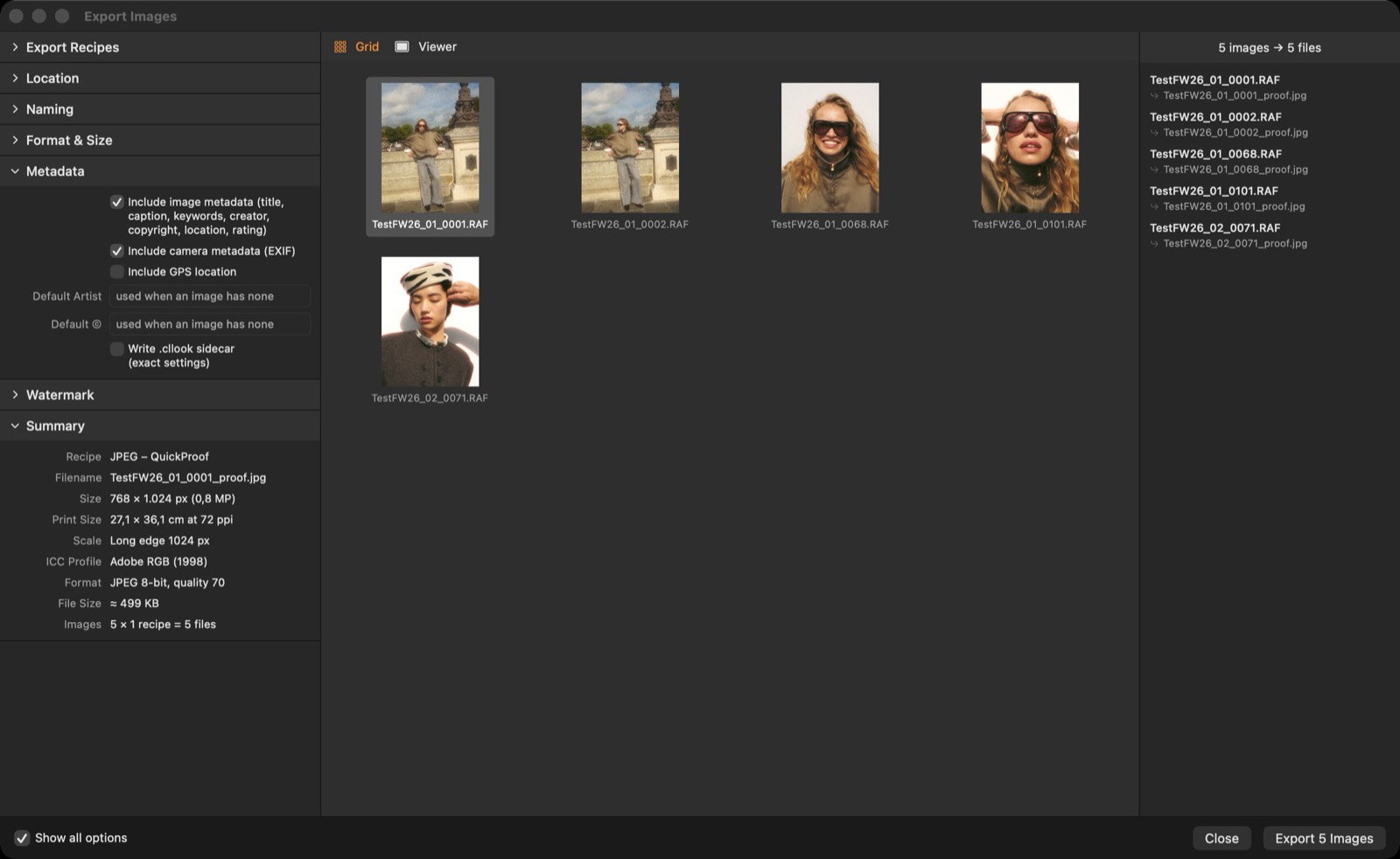
Image metadata (title, caption, keywords, creator, copyright, location, rating) and camera EXIF can be included; GPS is optional.
Watermark
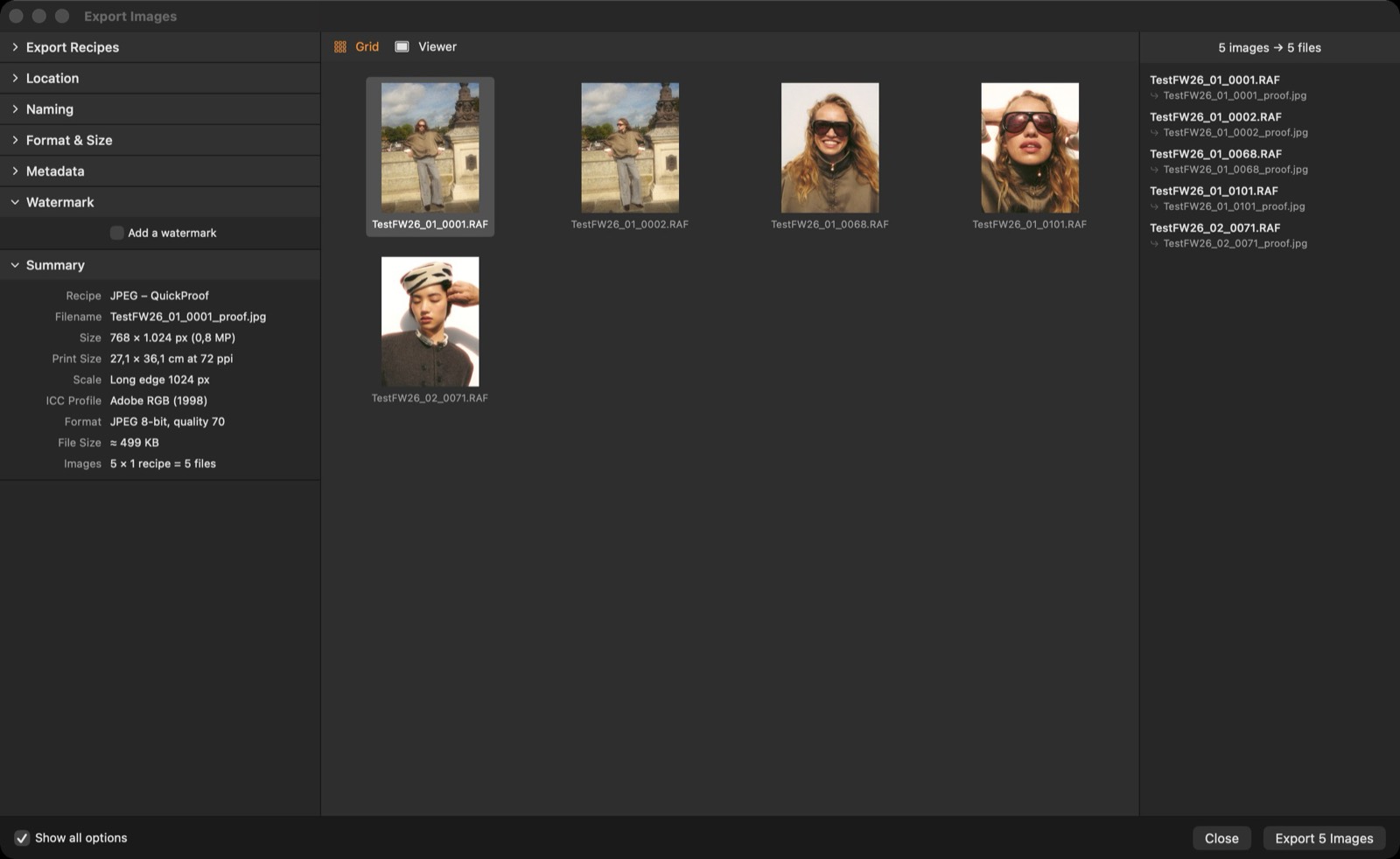
Each recipe can add a watermark: text (© Your Name, the file name …) or a PNG logo, in any corner or centred, with size relative to the image and an opacity, so it looks the same at every export size.
HDR output
The Rec. 2100 PQ (HDR) profile keeps highlights above diffuse white (203 nits) instead of clipping them. Use 16-bit PNG or TIFF, or HEIF; HDR-capable viewers and phones show the extra range.
Proof gallery
File ▸ Share Proof Gallery… renders the selected images into a self-contained web page. The session name sits at the top, then the gallery's title; on a phone, swipe left or right through the images and down to close.
Share on the local network lets a client on the same Wi-Fi mark images from a phone: they scan the QR code (click it to enlarge) or open the address (the copy button puts it on the clipboard), choose colour tags and write comments, and their picks arrive live as colour tags and captions. Ratings are left to you: a gallery shared on the network has no stars.
Off the network, send the folder (or a zip of it): the client opens index.html, can also rate with stars, and downloads picks.json; Import Picks… applies their ratings, colour tags and comments.
Shared albums: right-click a Session Album ▸ Share Album… turns it into a live gallery in Output/Proofs/Albums. The gallery follows the album: images added or removed (for a smart album, images that come to match its rules or stop matching) and new edits reach it within seconds, only changed images are rendered again, and the app pushes the change to every page open on the network, which redraws without a reload (the green dot by the title shows the live connection). A shared album shows a broadcast icon in the Library; click it for the address, progress and Import Picks…. All galleries of a session share one network switch, and a session with shared albums shares them again when it opens. Stop Sharing keeps the folder.
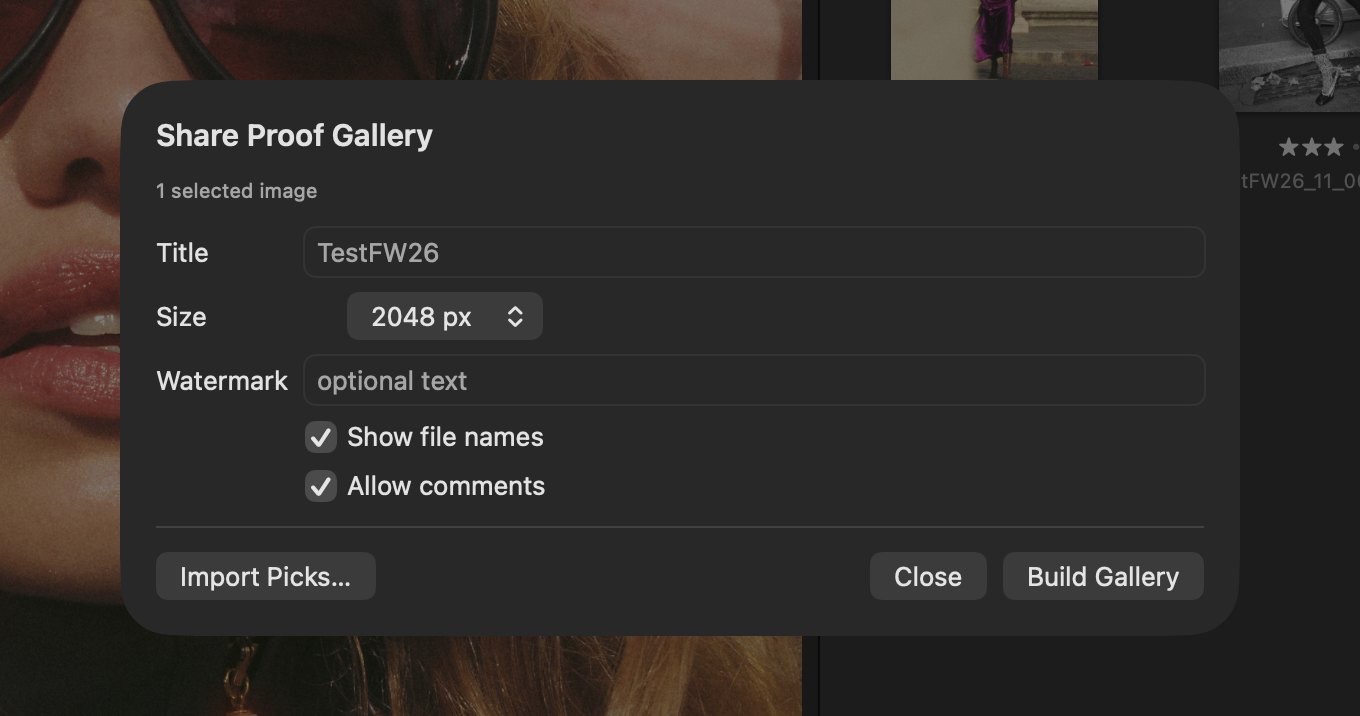
Image packages
File ▸ Export Package… (or right-click images ▸ Export Package…, or an album ▸ Export Album as Package…) packs the original files into one .clpack file together with everything the session knows about them: adjustments and layers, variants, saved versions, ratings, colour tags and metadata. Use it to hand a shoot to a retoucher, move an album to another Mac or keep an edited set with its settings. Packing shows its progress and can be cancelled.
File ▸ Open Package… (or a double-click on a .clpack file in the Finder) opens a package into the open session, or into a new session if none is open: the files are copied to a Capture subfolder named after the package, their settings come with them, and an album of the same name shows them, ready to edit. Opening the same package twice makes a second folder and album; nothing in the session is overwritten. Content analysis (faces, sharpness) is not packed and runs again where the package is opened.
Compare board and PDF
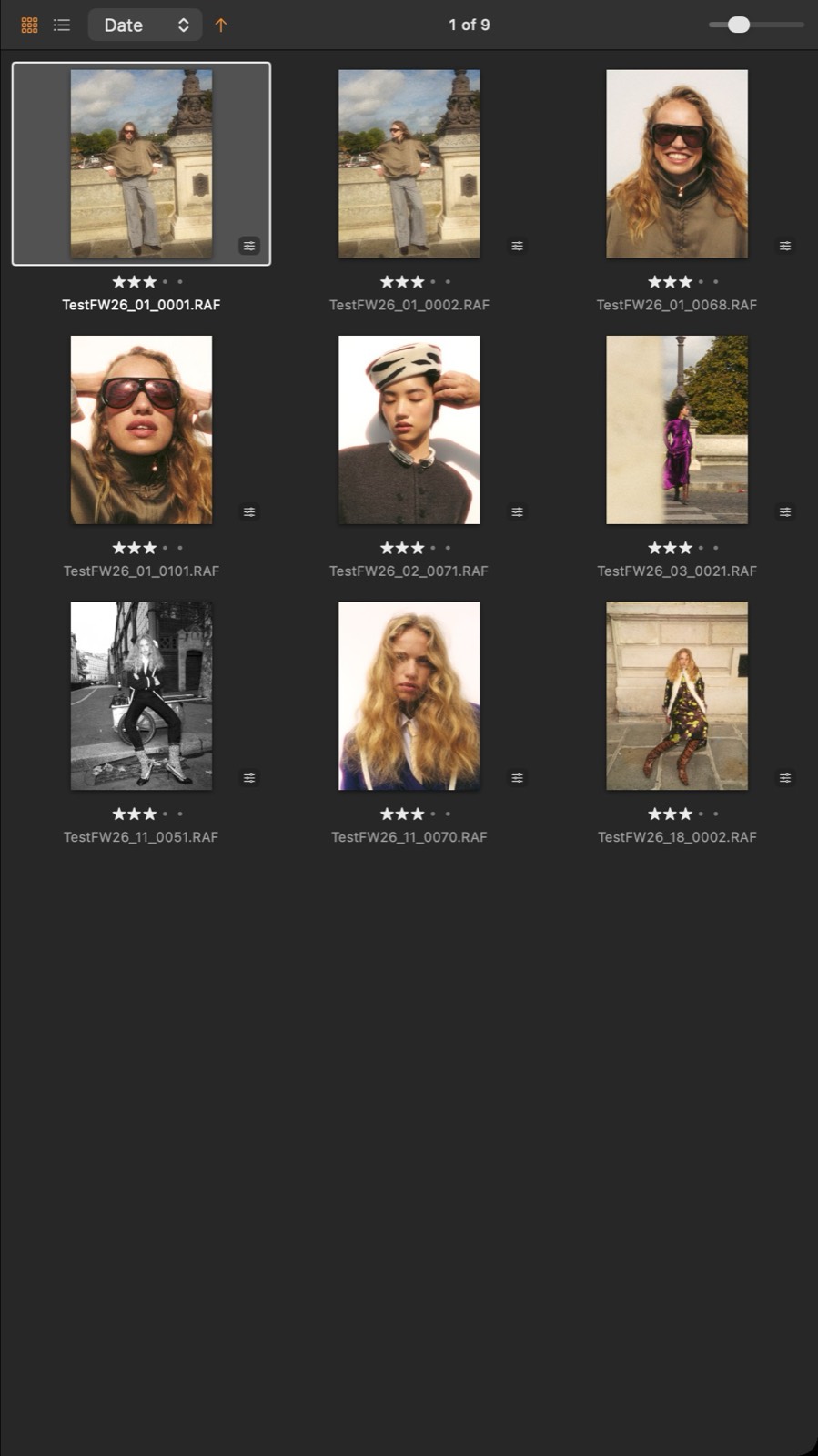
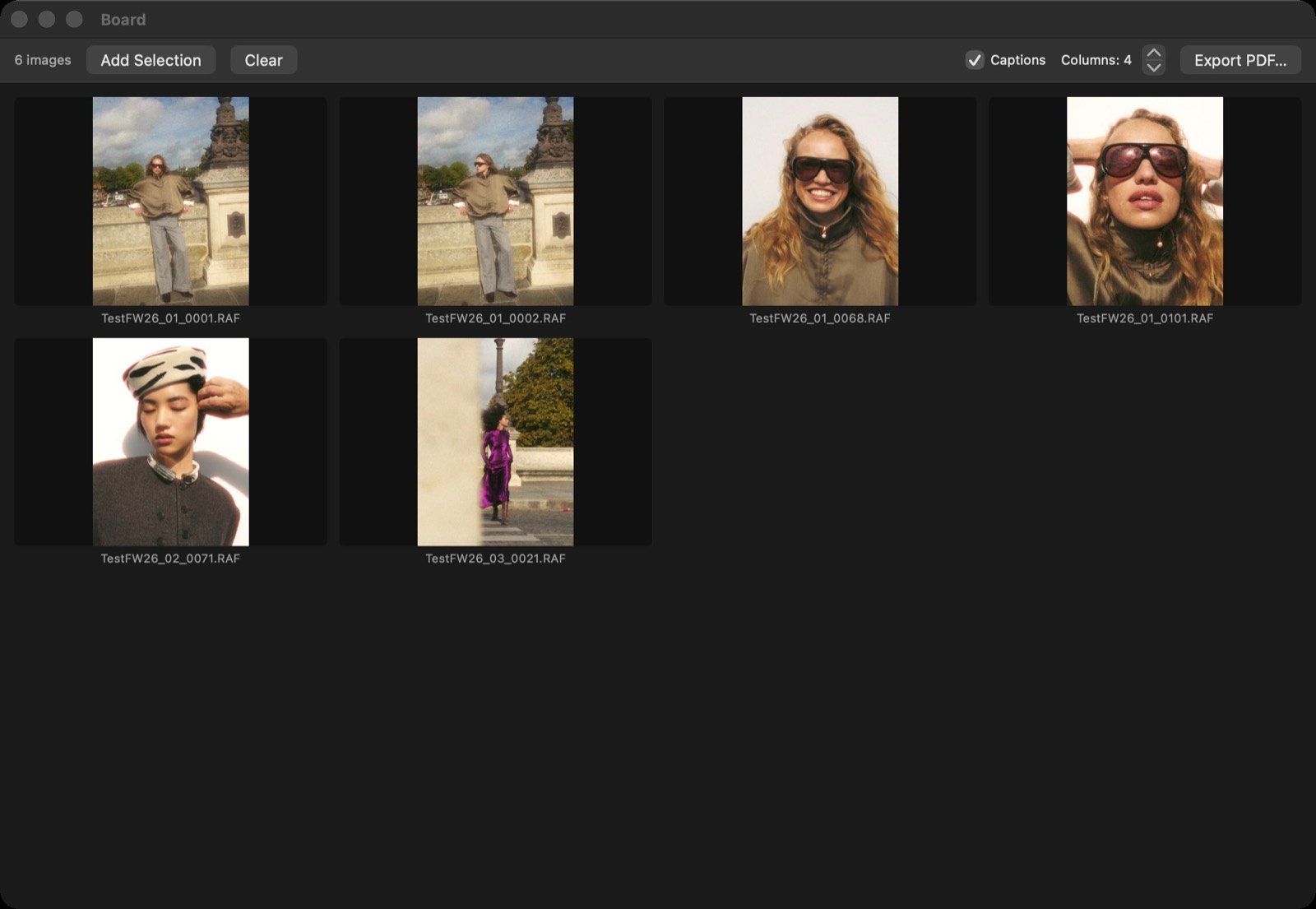
Image ▸ Add to Board (⌥⌘B) collects images in the Board window, where you order them and export a PDF contact board with captions.
LUTs and looks
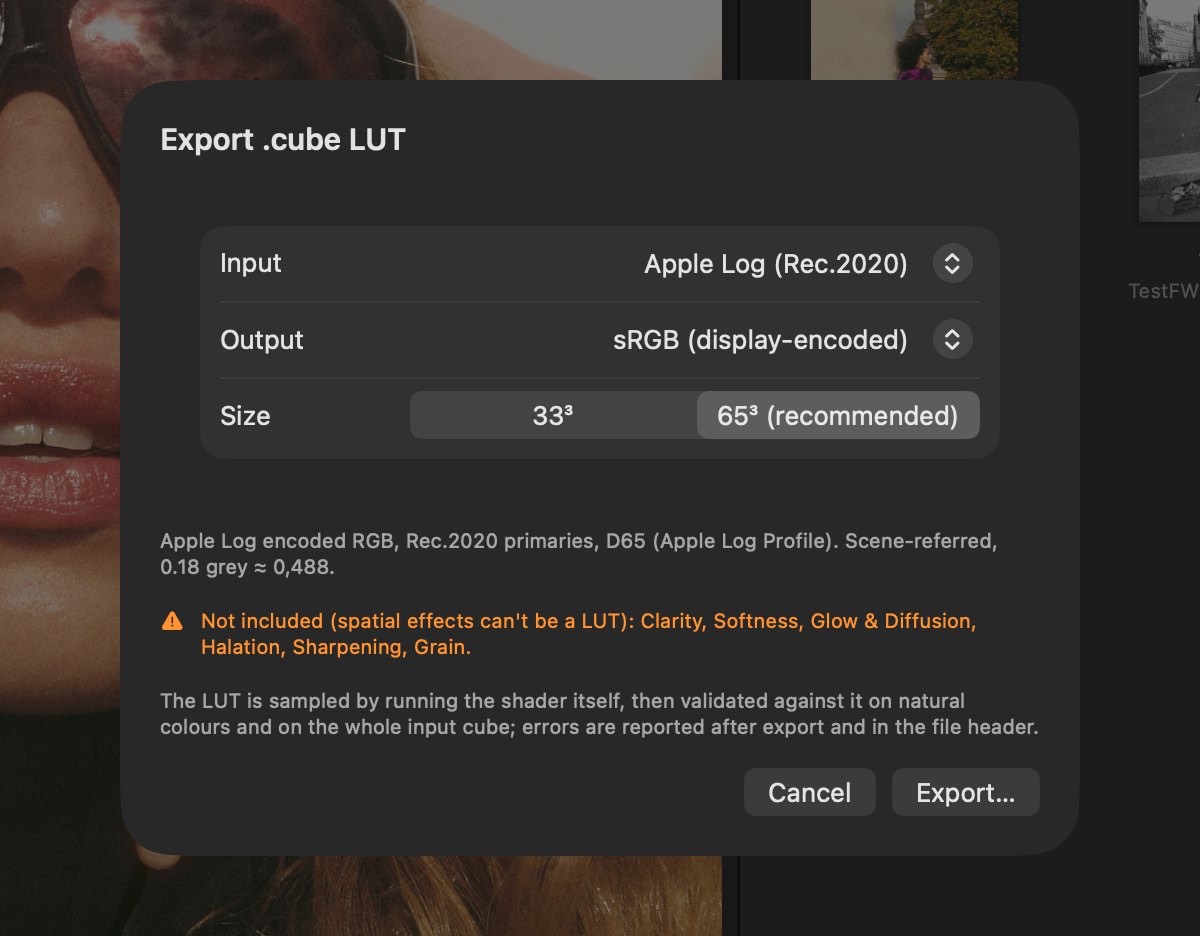
Export LUT (⌥⌘E) writes a colour-only .cube LUT, validated against the real pipeline. Spatial effects (grain, glow, clarity, vignette …) cannot be part of a LUT and are listed. Looks can be exported as .cllook files (right-click a look ▸ Export .cllook…); a double-click on a .cllook file in the Finder adds it to your looks. Files from earlier versions (.look) still import.
Video: clips in the session's folders (or imported with the Import window) sit in the browser next to the stills with a film badge and their length; each keeps its own grade. Open one (or any clip with ⌘O) and a transport bar appears under the frame — step frames with ← →, scrub with the slider, timecode and the clip's format on the right. Grade the frame with every tool (spatial effects excluded from the LUT), then Export LUT: the sheet pre-selects Apple Log input for Apple Log clips and sRGB display-referred otherwise, and says where to apply it in the editor. HDR clips are tone-mapped to SDR for grading.
Free mode and subscription
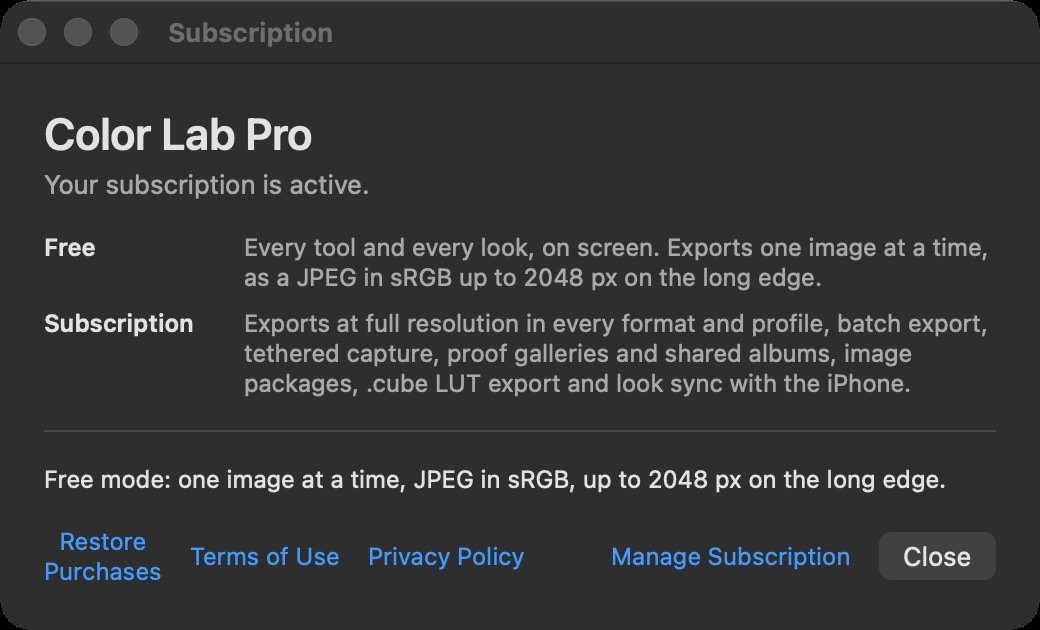
Without a subscription every tool and look works on screen. An export is one image at a time, rendered as a JPEG in sRGB up to 2048 px on the long edge (recipes that copy the original file are not changed). Batch export, tethered capture, proof galleries and shared albums, image packages, Export LUT and look sync with the iPhone are part of the subscription: asking for one opens the Subscription window, which says what was asked for. A Color Lab Pro subscription is monthly or yearly, with a free trial for new subscribers. Subscribe from Color Lab Pro ▸ Subscription… or from the Export window; Settings ▸ Subscription shows the status, Restore Purchases and Manage Subscription.