Tools
Color
In the app, every tool's ⋯ menu ▸ Help opens its section here; hover any slider for a short explanation.
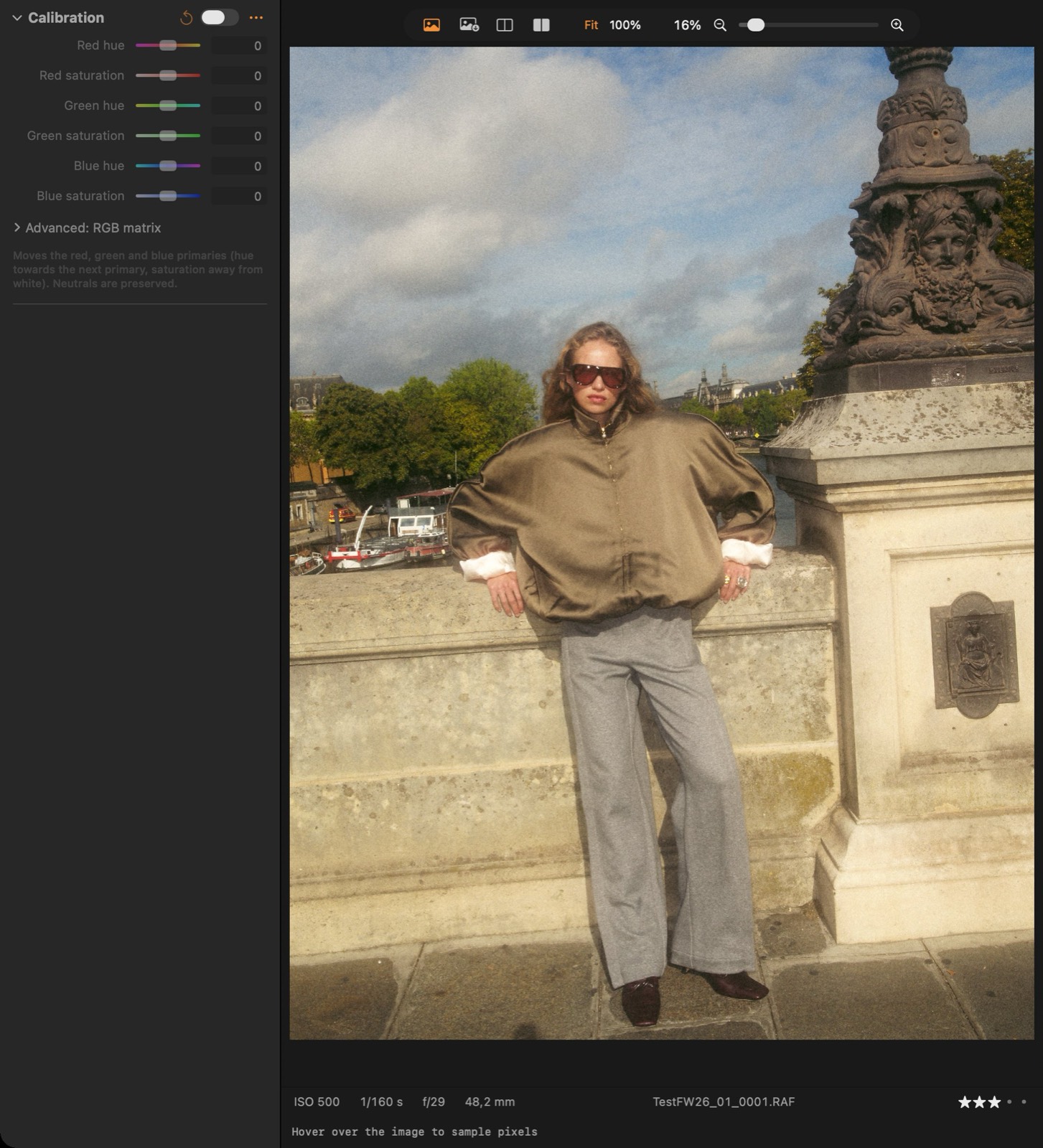
Calibration
#Moves the red, green and blue primaries (hue and saturation), like a camera calibration.
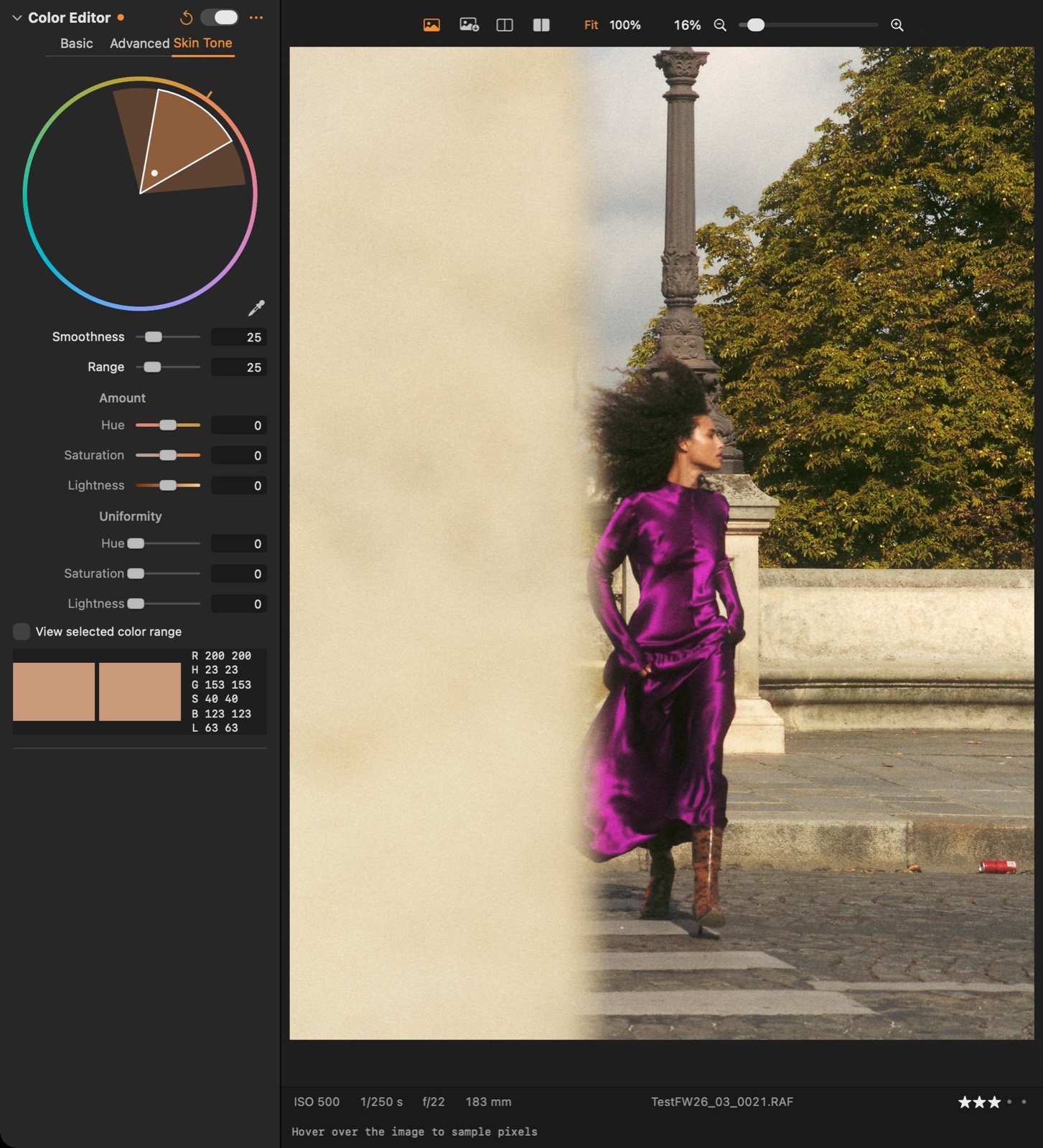
Color Editor
#Change hue, saturation and lightness of colour bands, freely picked colour ranges or skin tones.
Parameters
| Parameter | What it does |
|---|---|
| Smoothness | Width of the soft edge around the selected colour range, in degrees of hue. |
| Range | Width of the fully selected colour range, in degrees of hue. |
| Hue | Shifts the hue of the selected colours (±30°). |
| Saturation | More or less saturation for the selected colours. |
| Lightness | Brighter or darker selected colours. |
Good to know
- Basic: eight colour bands plus All colours.
- Advanced: pick a colour with the eyedropper or drag on the wheel; each range has its own width, soft edge and ΔH / ΔS / ΔL.
- Skin Tone: pick the skin colour; Amount shifts it, Uniformity evens skin out.
- View selected color range shows the selection with everything else grey.
Color Warper
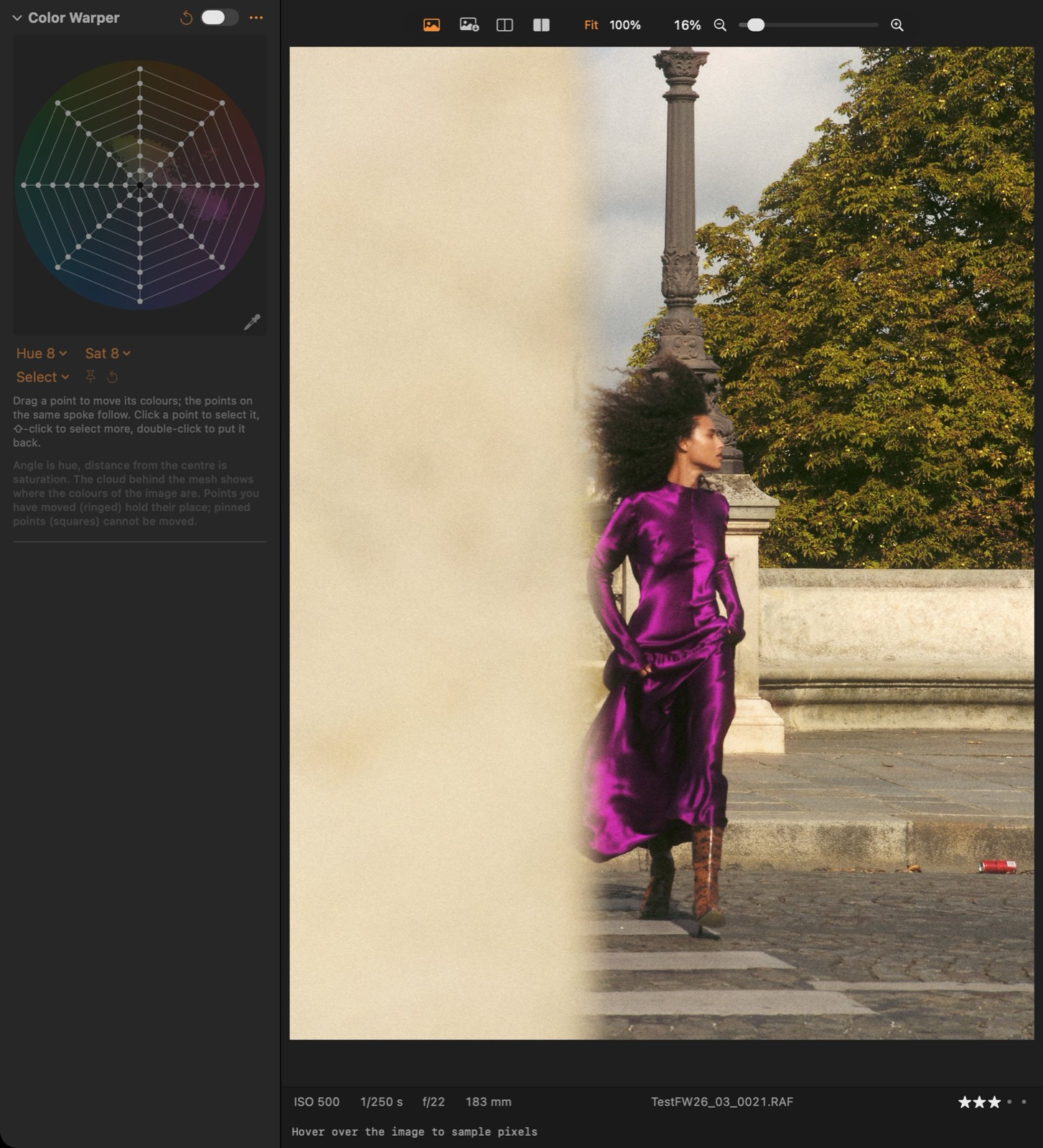
#Move colours on a hue and saturation mesh: drag a point and the colours around it follow smoothly.
Parameters
| Parameter | What it does |
|---|---|
| Hue | Turns the colours of the selected points towards a neighbouring hue. |
| Saturation | Makes the colours of the selected points more or less saturated. |
| Luma | Makes the colours of the selected points lighter or darker. |
Good to know
- Angle is hue, distance from the centre is saturation. Drag a point to move the colours it stands for; the other points on the same spoke follow, and the colours between points change smoothly.
- The cloud behind the mesh shows where the colours of the image are, so you can see which points matter. The eyedropper selects the point nearest to a colour you click in the image.
- A point you have moved holds its place (ringed). Pin locks points so they cannot be moved, which protects colours such as skin. ⇧-click selects several points, double-click puts a point back; Hue and Sat set the number of spokes and rings.
Color Balance
#Tint shadows, midtones and highlights with colour wheels, plus their brightness.
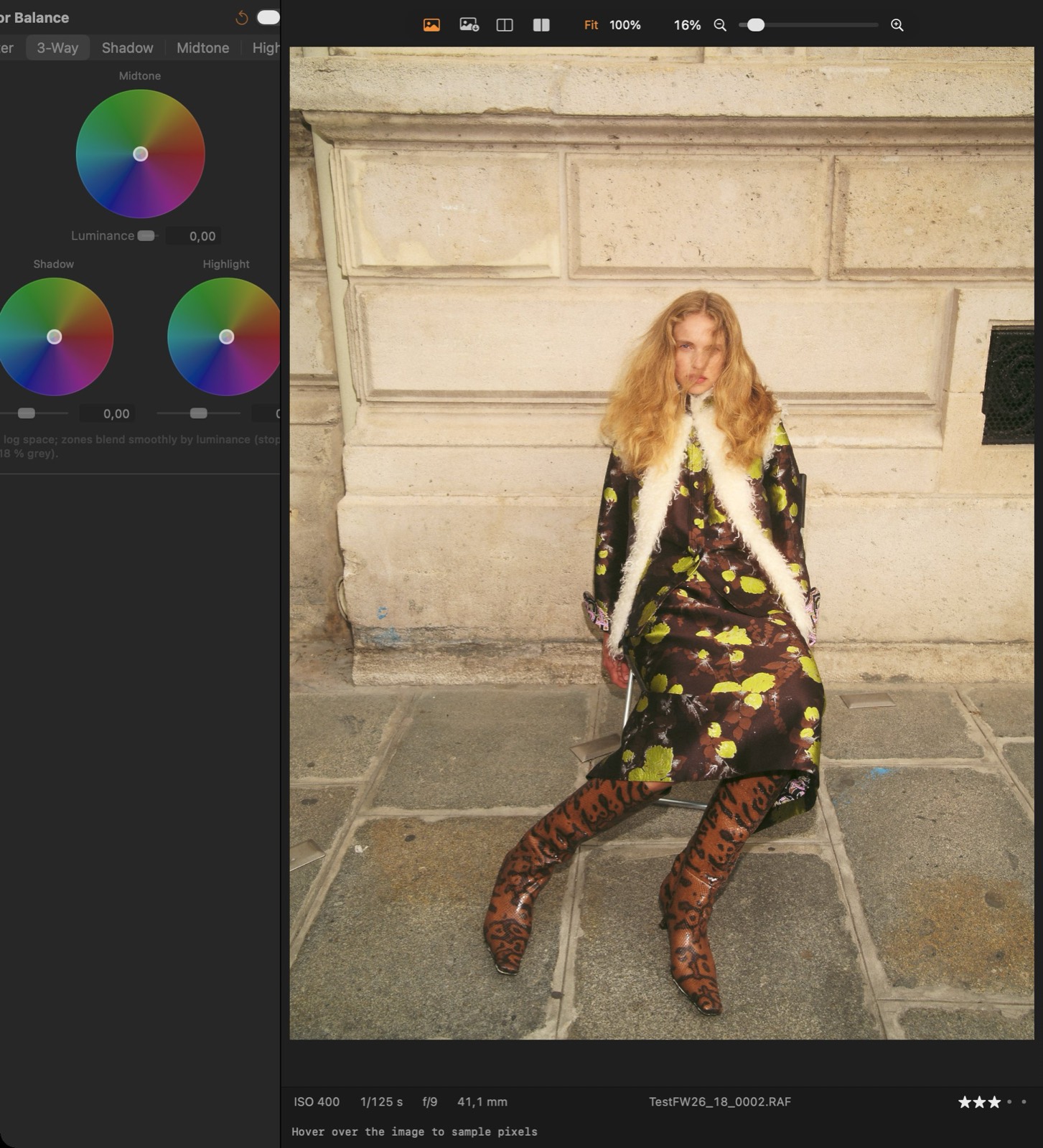
Good to know
- 3-Way shows shadow, midtone and highlight wheels; drag the puck to tint, double-click to reset.
Hue & Saturation
#Global hue rotation and saturation, and saturation by tone zone.
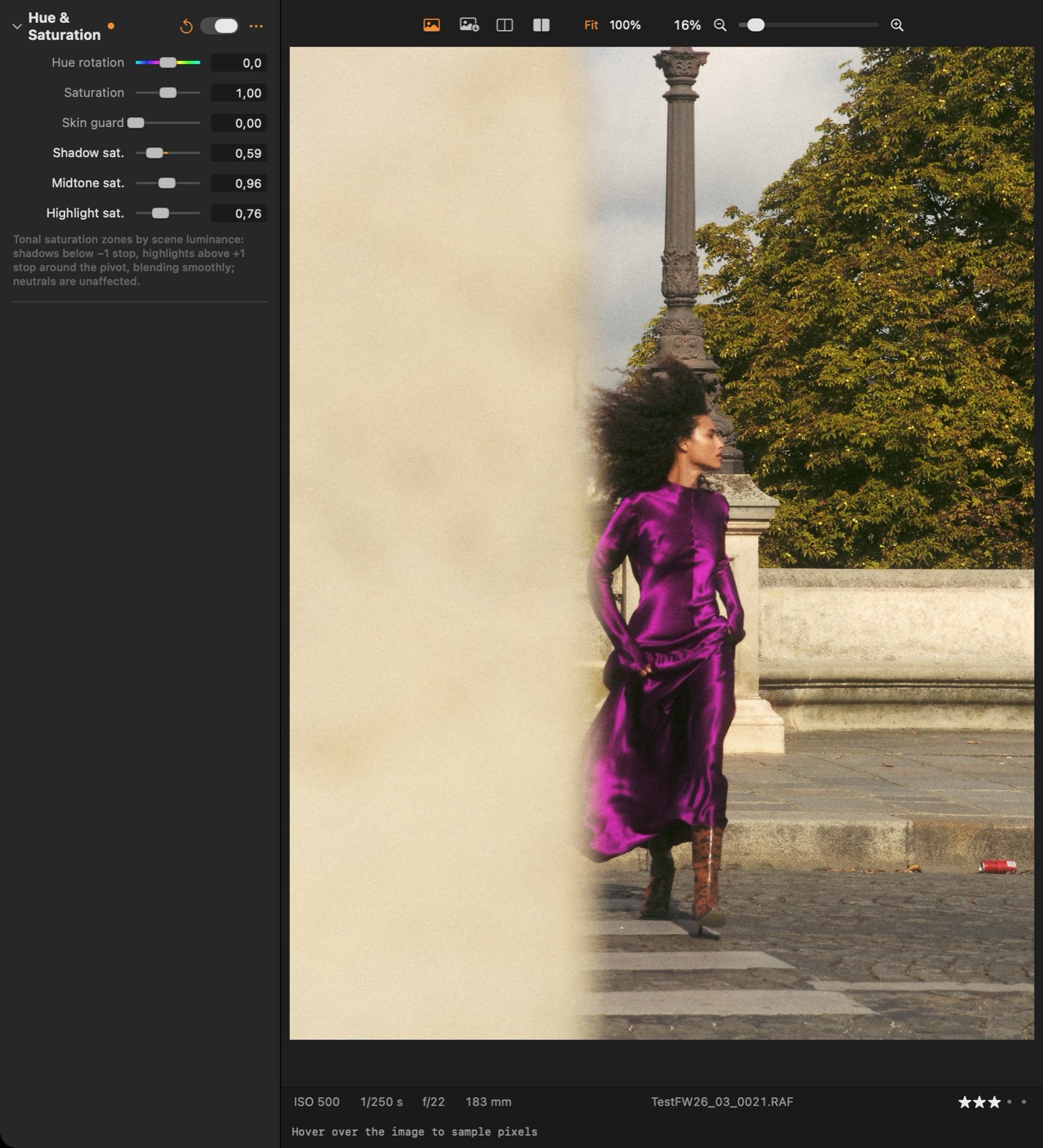
Parameters
| Parameter | What it does |
|---|---|
| Hue rotation | Rotates every hue around the colour wheel. |
| Saturation | Colour intensity: lower is more muted, higher more vivid. |
Black & White
#Black & white conversion with per-colour sensitivity, like coloured filters on film.
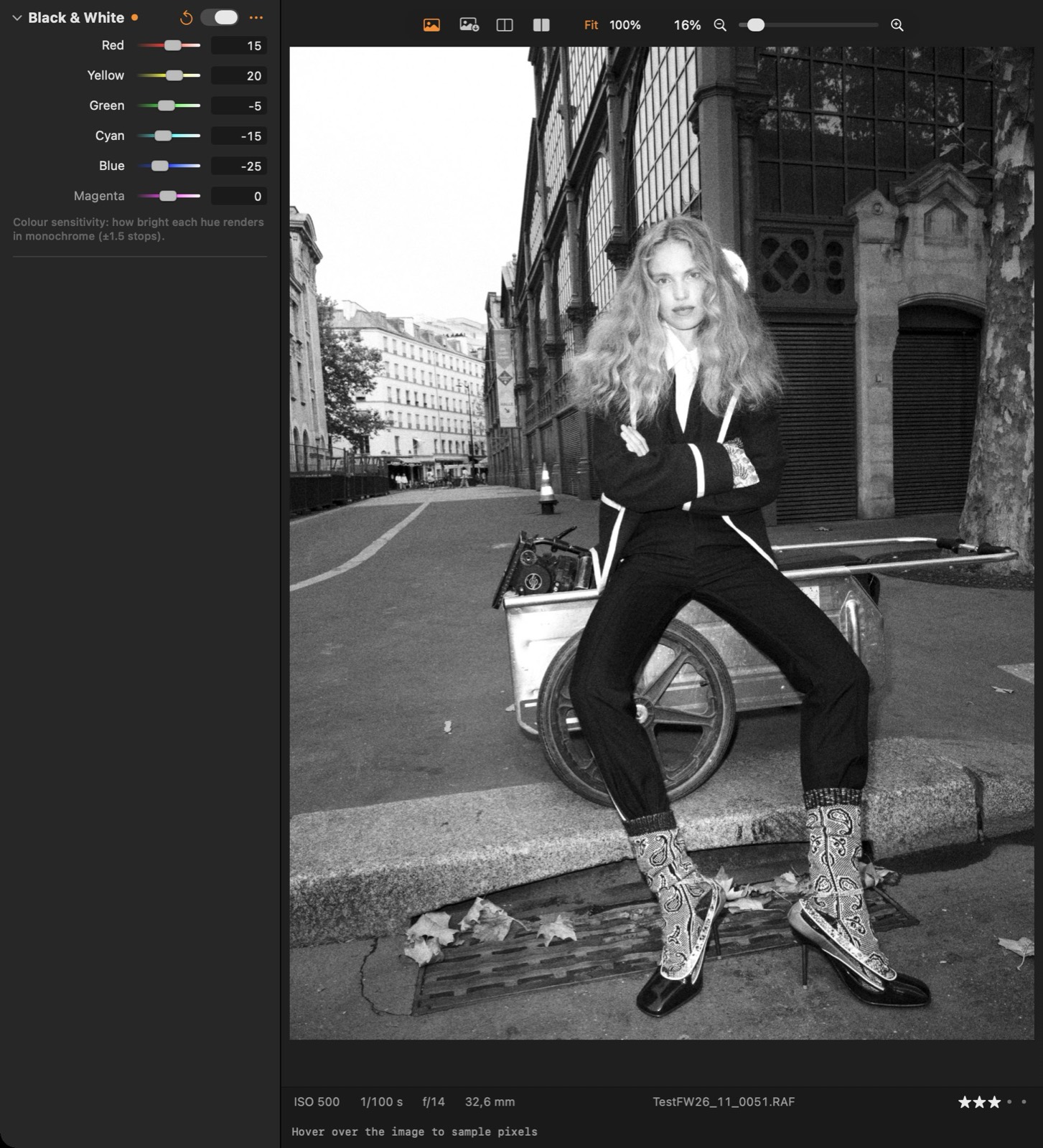
Good to know
- Each colour slider makes that colour lighter or darker in the monochrome image, like a coloured filter.
Split Toning
#Separate colour tints for shadows and highlights.
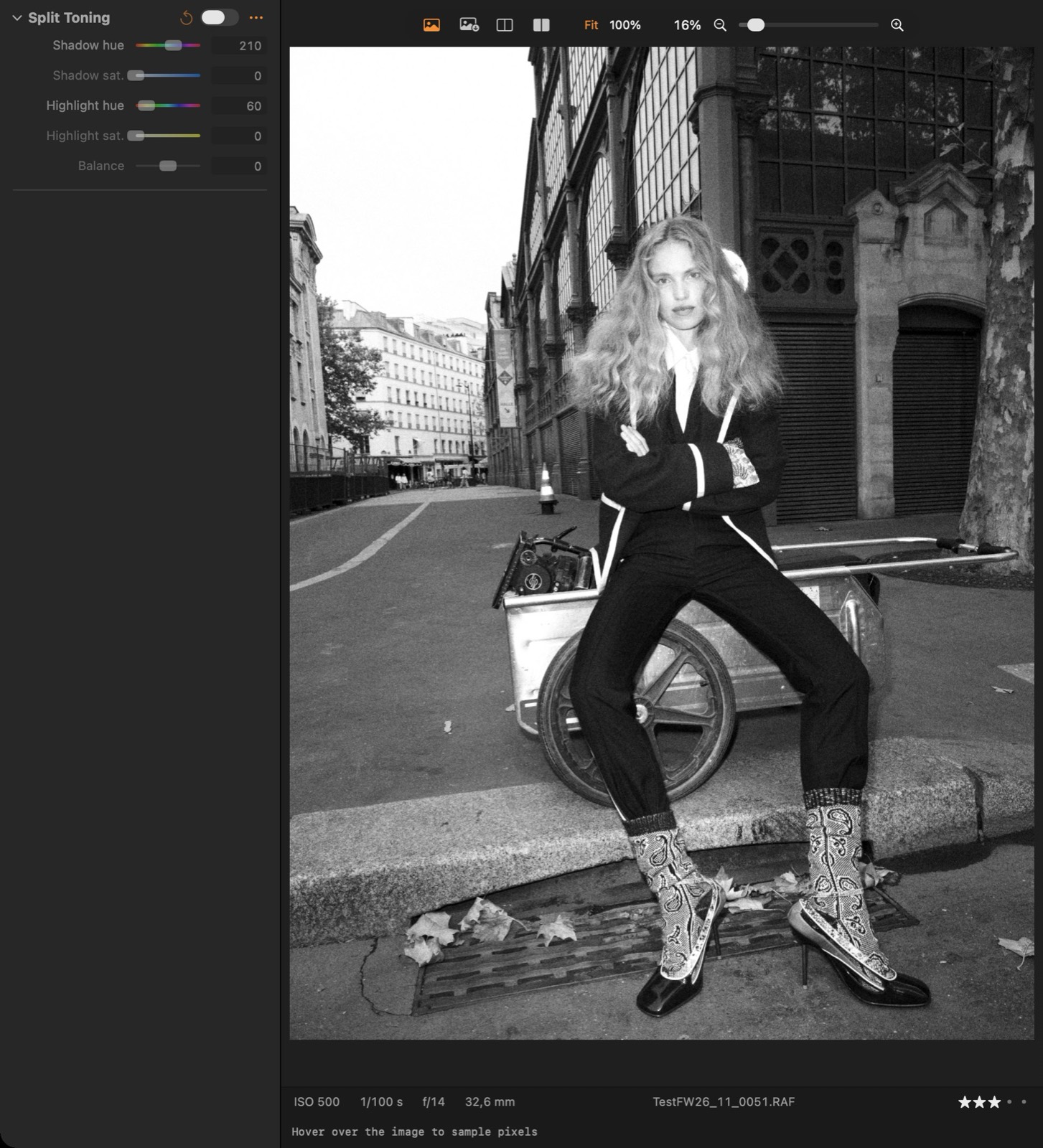
Parameters
| Parameter | What it does |
|---|---|
| Shadow hue | Colour of the shadow tint. |
| Highlight hue | Colour of the highlight tint. |
| Balance | Moves the split between shadow and highlight tint. |
Selective Color
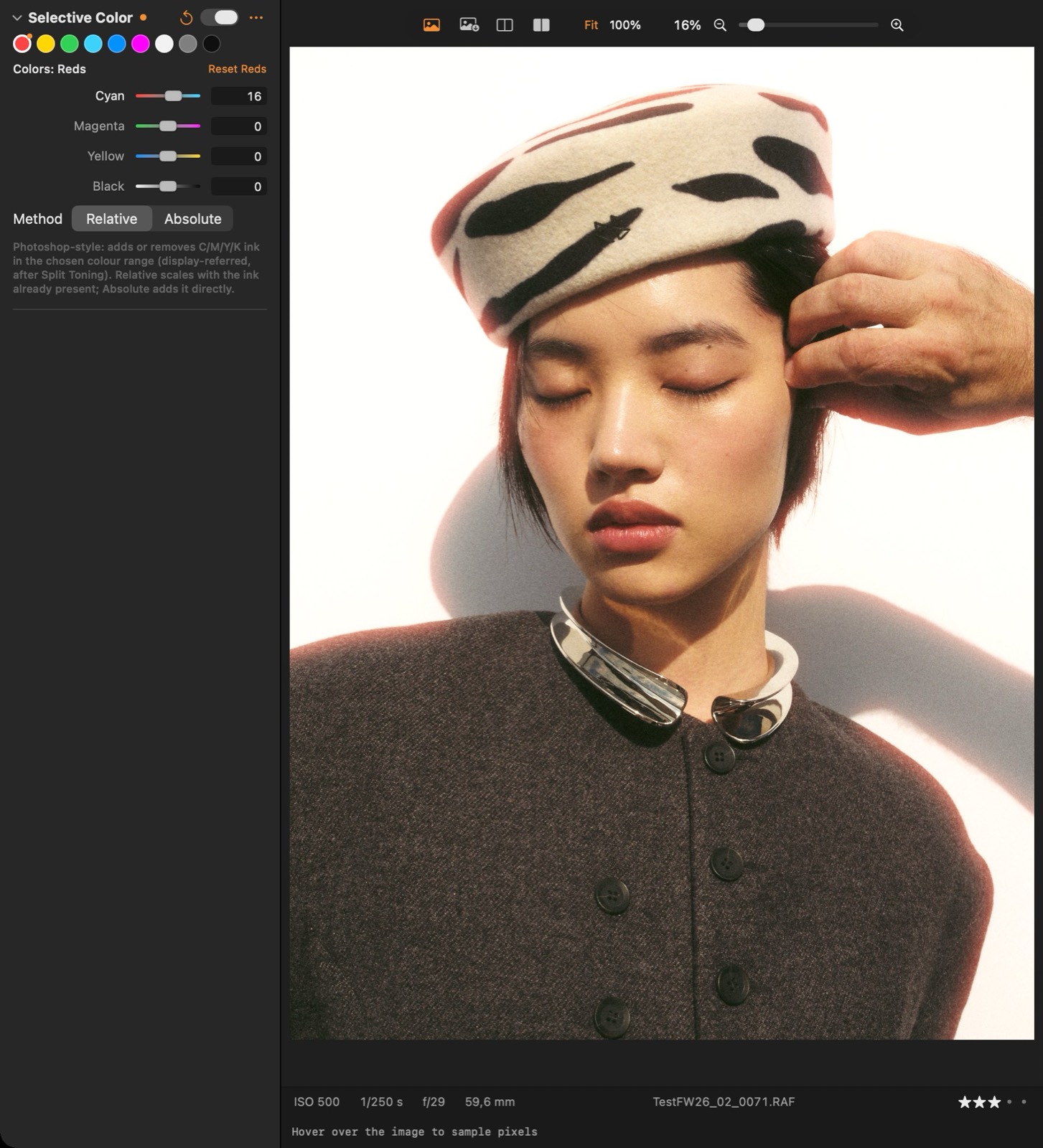
#Photoshop-style selective colour: add or remove cyan, magenta, yellow and black in a colour range.
Parameters
| Parameter | What it does |
|---|---|
| Cyan | Adds (+) or removes (−) cyan ink in the chosen colour range: less red light. |
| Magenta | Adds (+) or removes (−) magenta ink: less green light. |
| Yellow | Adds (+) or removes (−) yellow ink: less blue light. |
| Black | Adds (+) or removes (−) black ink: darker or lighter. |
Gamut Compression
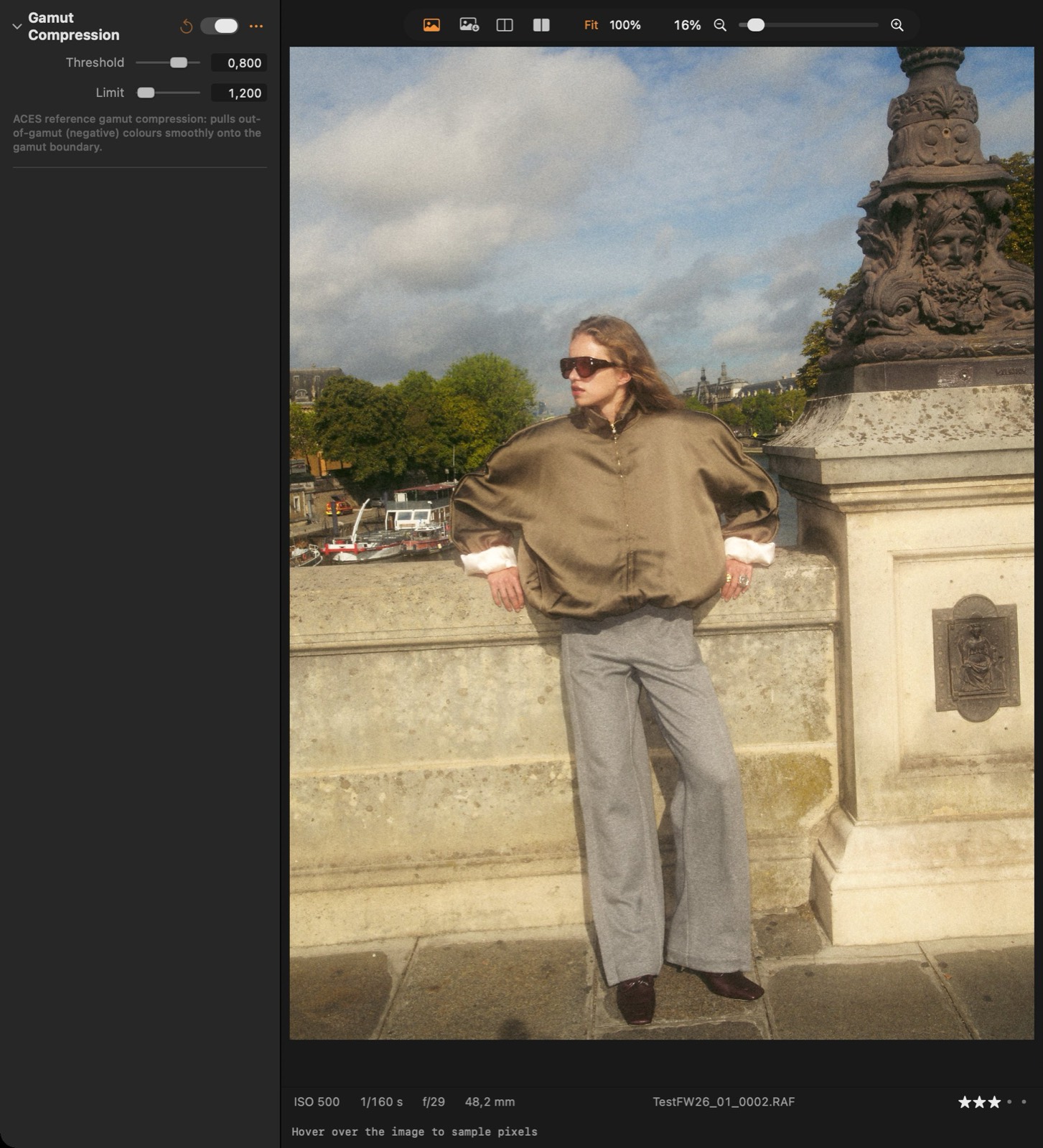
#Pulls colours that fall outside the output gamut smoothly back in, avoiding hard clipping.
Parameters
| Parameter | What it does |
|---|---|
| Threshold | Saturation from which colours start to be compressed. |
| Limit | How far outside the gamut colours are brought back from. |